

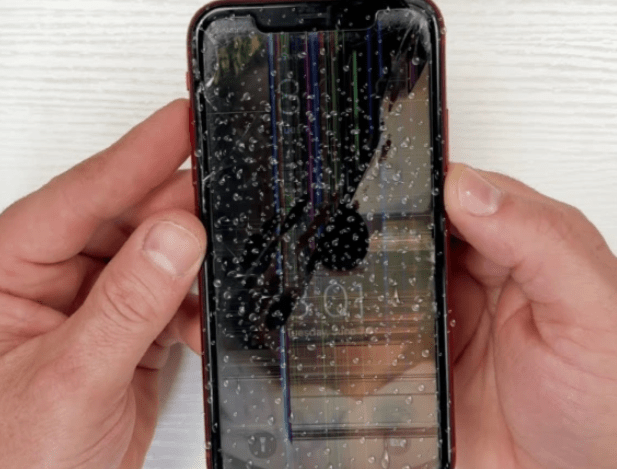
You are right in the middle of sending an important message or looking through your social feed, and your iPhone display suddenly starts blinking, flashing or flickering. It is incredibly frustrating, strains your eyes & makes you worry that your expensive device is about to break forever. Do not panic or rush out to buy a pricey replacement phone just yet, because screen flickering is a very common issue. Getting a professional inspection at a shop that offers reliable iPhone screen repair NYC will handle deep hardware trouble but a ton of these screen flickering issues are just small software bugs you can fix at home for free.
Key Takeaways
- Faulty app processes or system glitches can make the backlight flash but a clean system restart usually irons out these visual stutters.
- Crashing operating systems or failed wireless updates mess with display rendering, meaning a fresh software installation or factory wipe can solve the jumping.
- Glitching brightness sensors & color tools can confuse the phone’s illumination panel, so turning off automatic adjustments stops the rapid pulsing.
- Hard impacts & drops often displace or damage internal display cables, requiring a quick technician visit to safely examine the internal connections.
- Low-quality power bricks & faulty charging setups can introduce electrical noise into the hardware, causing the touch glass & pixels to shake while charging.
10 Common Causes of iPhone Screen Flickering
When your mobile screen behaves like a strobe light or shows weird lines, something is blocking the smooth communication between the logic board & the glass. Look over these ten frequent culprits & their direct fixes to get your display working normally again.
1. A Stubborn Software Glitch or System Freeze
Sometimes the main iOS platform gets overwhelmed from managing too many background tasks or running a heavy process. When small system bugs or temporary data errors stall the commands heading to the display panel, the image on your phone can lock up, shake or blink rapidly.
How to Fix
- Click & immediately let go of the Volume Up key on the left side of your frame.
- Press & let go of the Volume Down key located right below it.
- Hold down the Side button firmly & do not let go until the white Apple icon shows up.
2. A Buggy or Outdated Third-Party Application
Does your display work fine all morning but start twitching the exact second you boot up a specific mobile game or social app? If a developer has not updated their application to match Apple’s newest software releases, the unoptimized code will clash with your graphics chip & cause the frame to jitter.
How to Fix
- Swipe halfway up from the bottom of your screen to open the active app switcher.
- Find the preview window for the glitching app & flick it up & off the screen to close it down.
- Launch the App Store, click your account picture & install any waiting updates for that specific application.
3. Faulty Auto-Brightness & True Tone Sensors
Modern iPhones use light sensors near the front camera to read the room you are in & change your brightness levels or color warmth. If the software running these meters has a brief error, the screen can start jumping between bright & dim levels every single second, creating an annoying flashing effect.
How to Fix
- Launch your main Settings app & tap on the Display & Brightness tab.
- Find the True Tone toggle switch & click it over so it turns gray & shuts off.
- Go to Accessibility, click Display & Text Size, scroll down to the bottom & turn off Auto-Brightness.
4. An Interrupted or Corrupted iOS Update
Operating system updates are huge files that change the deepest code on your phone. If your device runs out of battery during a download or if your internet cuts out mid-install, your display drivers can get corrupted which leaves the phone struggling to project a clean picture.
How to Fix
- Go to Settings, click General & choose Software Update to see if a newer, clean patch is ready to install.
- Connect your iPhone to a laptop or desktop computer using a certified USB data cable.
- Open iTunes or Finder on the computer, select your phone icon & tap Update to safely re-install the system.
5. Running Too Low on Internal Storage Space
When you fill your phone to the brim with thousands of photos, high-definition videos & heavy apps, you leave no breathing room for memory tasks. If an iPhone drops below a couple of gigabytes of free space, it cannot save temporary cache files, causing the whole interface to lag & blink.
How to Fix
- Head into Settings, select the General folder & tap iPhone Storage to see a visual layout of your space.
- Look through the list & erase old heavy video files or massive text message threads you do not need.
- Choose larger apps or games you have not opened in months & click Delete to free up system space.
6. A Loose or Damaged Internal Display Cable
If you recently dropped your device on a hard surface or knocked it against a counter, you might be happy that the glass did not crack. However, that physical shock can travel inside the frame & partially unseat or damage the internal ribbon cables that link the screen directly to the main circuit board.
How to Fix
- Avoid squeezing or pressing down hard on the phone screen or frame, as applying manual pressure can worsen internal damage or crack the glass.
- Monitor whether the flickering triggers specifically when the phone is moved, bumped or tapped.
- Bring the device to a professional repair technician who can safely open the frame & inspect the internal connections.
7. Liquid Damage Inside the Frame
You do not have to submerge your phone completely in a pool to get water damage. Exposing your device to heavy rainstorms, sudden liquid spills or splashes can easily let droplets sneak past the frame seals, creating small electrical shorts across your display components.
How to Fix
- Shut down the iPhone immediately to stop live electricity from moving through the damp internal pathways.
- Wipe the outside dry & place the device flat in a warm room with plenty of natural airflow from a fan.
- Leave the device completely powered down for a full 24 hours & keep it away from bags of raw rice.
8. A Cheap or Damaged Charging Cable
Does your phone screen work normally when you are out running errands but start lagging & stuttering the moment you plug it into a wall outlet? Inexpensive, uncertified charging setups can introduce electrical noise or intermittent connections, passing a messy current into the phone that affects touch responsiveness & screen stability.
How to Fix
- Disconnect the charging cord from the bottom port of your device right away to stop the erratic power.
- Switch out the cheap accessory for an official Apple cord & a high-quality name-brand wall brick.
- Plug your charger into a different room outlet or a surge protector to rule out a faulty wall socket.
9. A Failing Device Battery
As lithium-ion power cells age and undergo hundreds of daily charge cycles, their internal chemistry wears out. When a battery drops past its peak health, it can struggle to supply a stable voltage to the motherboard, causing the screen backlight to waver when the system experiences sudden peak power demands.
How to Fix
- Open your Settings app, scroll down a short distance & open the Battery tab.
- Tap on Battery Health & Charging to view the actual status of your internal power cell.
- Check the Maximum Capacity percentage; if it sits below 80 percent, a battery replacement is worth considering to resolve power-related performance bugs.
10. A Burned-Out OLED or LCD Panel
At the end of the day, every smartphone screen has a limited lifetime. After a few years of daily use, hot sun exposure or minor bumps, the pixel grids simply break down for good, causing permanent flashing green lines white spots or constant blinking that never stops.
How to Fix
- Connect your device to a stable Wi-Fi network & run a manual iCloud backup before the screen dies.
- Do not buy a cheap replacement panel online to try a home repair, as you can easily ruin your Face ID.
- Bring the phone to a local professional repair office to have the broken screen assembly swapped out cleanly.
Conclusion
A flickering iPhone screen is incredibly annoying but you usually do not have to buy a brand-new device to get rid of the stress. Running through basic software resets & checking your settings can often clear up the blinking without costing a dime. If the flashing stays around after a full cleanup, finding a reliable iPhone screen repair NYC option is your best bet to get a quick parts swap that makes your screen look perfect again.